How do you check your sales from ChatGPT or Claude?
Setup in Claude, ChatGPT, Codex and Cursor, the approval step, six questions and what comes back, a worked one-day summary, and how to check the figures.

Press the card to run an example sale.
Add your payment provider to the assistant as an MCP server, sign in, approve one business, then ask in plain words. With Railbed, Claude and Cursor use https://mcp.railbed.io/mcp and ChatGPT can use the read-only Railbed Reporting server. A period's totals come back per currency, never converted into one sum.
Below: the setup in each app, the approval, six questions and what each returns, a worked one-day example, the limits, and how to check and revoke. A CSV upload works with any provider, but it is a snapshot; a connection reads your records each time you ask.
Which Railbed server does your assistant connect to?
Railbed runs two MCP servers, and which one you add decides what the assistant can reach. The table shows the address for each assistant and what that connection can do.
| Assistant | Server address | What it can do |
|---|---|---|
| Claude (web, Desktop, Cowork) | mcp.railbed.io/mcp |
Read records; prepare changes for you to confirm, unless approved as Read only |
| Claude Code, Cursor | mcp.railbed.io/mcp |
The same as Claude |
| ChatGPT, Codex | openai-mcp.railbed.io/mcp (Reporting) or the full server |
Reporting only reads, and leaves out invoices and buyer contact details |
For sales figures alone, Railbed Reporting is the narrower choice. According to Railbed's Reporting guide, its reports include payment amounts and states, order numbers and totals, and webhook delivery outcomes, while "buyer contact details, the pages buyers pay on, payout destinations and webhook receiver addresses are kept out." The full server's order and customer details include contact and shipping information. Both are added by address, so you don't need to find Railbed in an app's directory.
Add Railbed in Claude
The Claude app adds Railbed as a custom connector by its URL. Claude's help page, read on November 23, 2026, says this works on the Free, Pro, Max, Ultra, Team and Enterprise plans, and that "on the Free plan, you can add one custom connector." On Team and Enterprise plans an Owner adds it under Organization settings, and each member then connects with their own account.
- In Claude, open the Connectors directory (Customize > Connectors), choose Add, then Add custom connector.
- Name it Railbed, paste
https://mcp.railbed.io/mcpand choose Continue. Keep any option Claude marks Detected. - Choose Add, then Connect, and sign in with the account you use for the Railbed dashboard.
The Add to Claude button on Railbed's MCP guide opens the same dialog already filled in.
Claude Code
Claude Code adds the server with one command and signs in with a second, both run in your own terminal:
claude mcp add --scope user --transport http railbed https://mcp.railbed.io/mcp
claude mcp login railbed
The --scope user flag makes the server "available to you across all projects", says Claude Code's MCP reference. The sign-in needs an interactive terminal, so an agent inside Claude Code can add the server but can't sign in for you; type /mcp, choose railbed and sign in yourself. If the tools don't appear, restart with claude --continue.
Add Railbed in ChatGPT or Codex
ChatGPT adds Railbed Reporting as a custom MCP plugin, on the web only. These steps from Railbed's Reporting guide match OpenAI's page on custom MCP servers, read on November 23, 2026:
- In ChatGPT on the web, open Plugins, select +, then Add custom MCP server.
- Name it Railbed, enter
https://openai-mcp.railbed.io/mcpand choose OAuth. - Select I understand and want to continue, then Create as a plugin.
- Install Railbed from your personal plugins and sign in to Railbed when ChatGPT asks.
- Start a new chat, type @Railbed, choose it and ask it to connect to your business.
OpenAI notes that "workspace permissions and security restrictions, including Lockdown, apply to adding and using custom MCP servers", so a Business or Enterprise workspace may need an admin to allow them first. Codex adds the same server from a terminal, and codex mcp login railbed-reporting signs in if the add didn't:
codex mcp add railbed-reporting --url https://openai-mcp.railbed.io/mcp
Add Railbed in Cursor
Cursor adds Railbed through the Add to Cursor button on Railbed's MCP guide, or through a file. Cursor's MCP documentation says a ~/.cursor/mcp.json in your home folder holds "tools available everywhere":
{
  "mcpServers": {
    "railbed": {
      "url": "https://mcp.railbed.io/mcp"
    }
  }
}
Then open Customize > MCPs, check that railbed is on, and sign in when Cursor asks. Cursor "asks for approval before using MCP tools by default", and the arrow beside a tool's name shows its arguments.
Approve the business the assistant may read
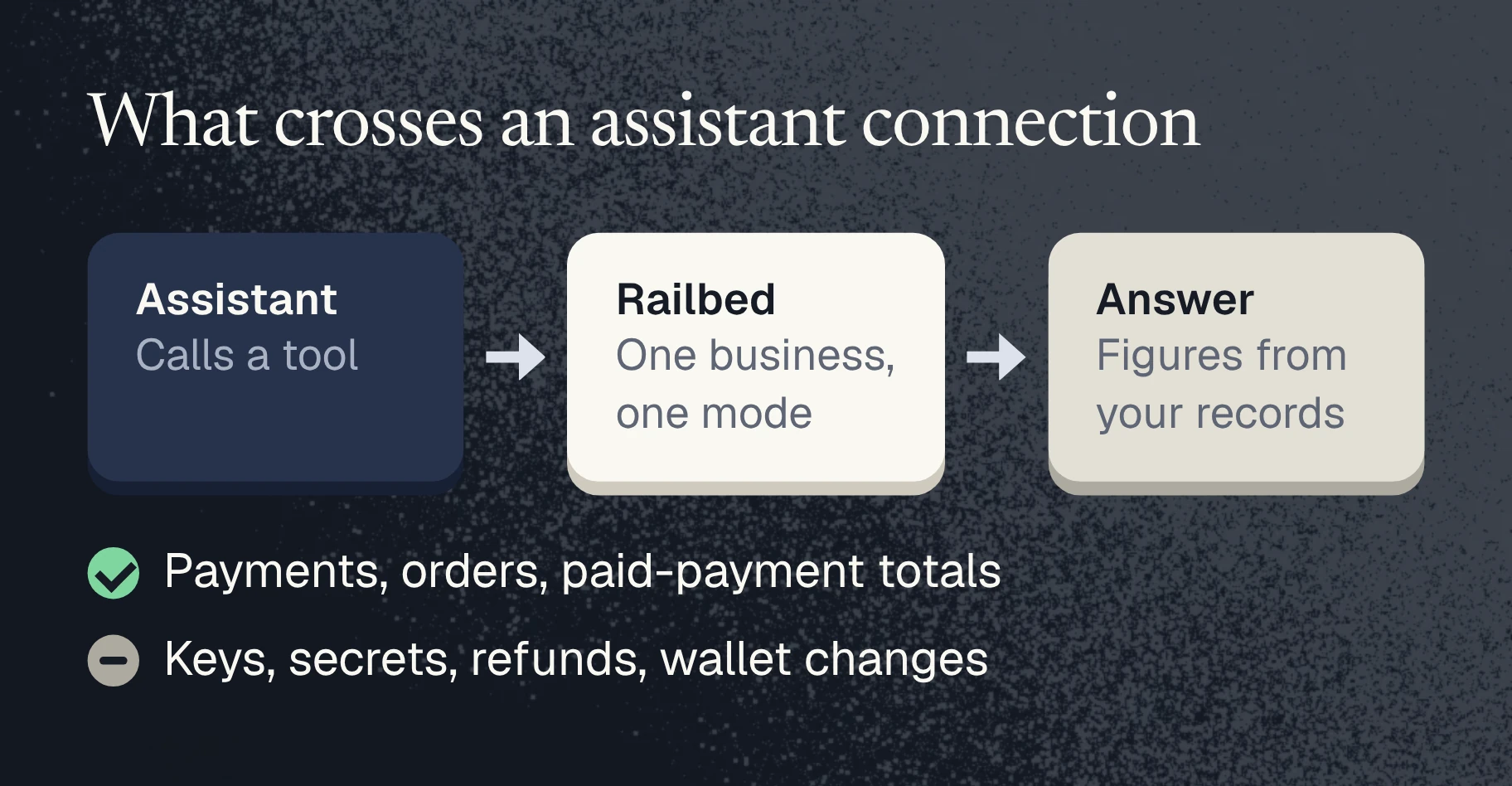
Signing in proves who you are; a separate approval decides which business the assistant reads. Only an owner or developer of the business can approve, the same people who can create secret keys.
- Ask the assistant to connect to your Railbed business. It replies with an approval link that works for 15 minutes.
- Open it and check the business named. Live is selected; to try simulated payments first, open Options and choose Test.
- On the full server, choose Read only instead of Full access if you only want reports. Reporting is always read only.
- Choose the connect button, which names your client, such as Connect Claude Code.
- Back in the assistant, ask it to check its connection. It should name the business, the mode and the access.
Six questions to ask, and what comes back
Each of these questions, from Railbed's own guides, maps to a tool the assistant calls. Lists return 20 records by default and up to 50, newest first; amounts arrive as decimal text such as "49.00" and times as Unix seconds, so name your time zone when the day matters.
- "Summarize yesterday's paid payments in America/New_York. Keep each order currency and reported settlement asset separate." The paid-payment summary returns the time boundaries it used, the number of paid payments, order amounts per currency, reported receipts grouped by payment method, network and coin, a count of missing amounts, and when it read the records. Both servers have it.
- "Which payments from this week need my decision, and why?" The assistant lists the week's payments and explains, from each record, why those reading Needs your decision need one. Accepting such a payment stays a dashboard action.
- "Find the payment with reference INV-0042 and explain its stored status." The status comes from Railbed's own settlement checks, and reading a payment never changes or refreshes it.
- "Show my latest five orders and their payment and fulfilment states." Orders come back with numbers, totals and both states. On the full server, lists keep to names and emails; Reporting leaves buyer contact details out.
- "Explain my latest failed webhook delivery." The assistant reads your endpoints and their delivery log. Railbed's guide adds: "A successful webhook response shows that the request was received. Payment settlement comes from Railbed's payment checks."
- "Which invoices are overdue, and how much is still owed on each?" The full server answers this. Reporting has no invoice tools, so in ChatGPT this question needs the full server.
A worked example: yesterday's sales in New York
"Yesterday" means nothing to the summary tool until it becomes two timestamps with offsets. Railbed's MCP guide gives the rule: the start is included, the end excluded, and a New York day during daylight-saving time runs from 2026-10-08T00:00:00-04:00 to 2026-10-09T00:00:00-04:00.
The offset moves. NIST's page on daylight-saving time says it "ends at 2:00 a.m. on the first Sunday of November", which in 2026 was November 1. So yesterday, November 22, ran from 2026-11-22T00:00:00-05:00 to 2026-11-23T00:00:00-05:00, and November 1 ran 25 hours, from 2026-11-01T00:00:00-04:00 to 2026-11-02T00:00:00-05:00. Check that the boundaries the tool reports are the ones you meant.
Now take an example day: two orders of $33.00 paid in USD and one of EUR 30.00. The summary shows 3 paid payments, USD 66.00 and EUR 30.00 on separate lines, and no combined total, because the tool does no exchange-rate conversion. If one payment has no reported receipt yet, the receipts line covers 2 payments and counts 1 as missing; Railbed's guide is plain that "an incomplete reported sum is not a full receipt total."
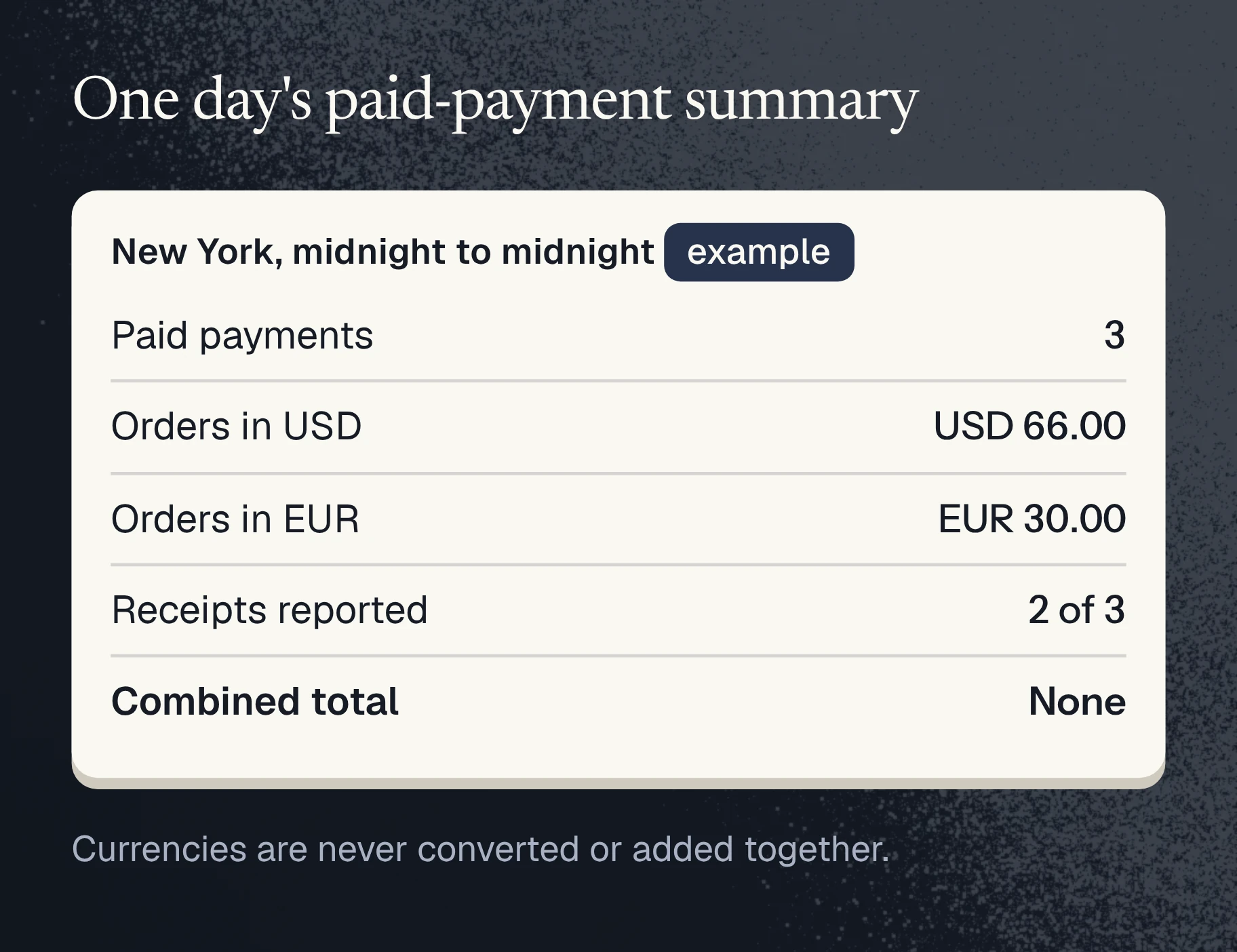
Two details change the count. The summary counts payment attempts, not orders: if two attempts toward the same $33.00 order both reached Paid, it shows 2 paid payments while Orders shows one order. And it selects payments by paid time, so one started at 11:50 p.m. and paid at 12:10 a.m. belongs to the next day.
The tool has hard edges. A period spans at most 31 days, and when more than 10,000 paid payments match, it asks for a shorter period and returns no partial total; split long periods into windows that don't overlap. It reads stored records, so it is not a wallet balance or an on-chain audit, and Test totals are simulated.
What the assistant can't see or do
An assistant connected to Railbed reads records and, with Full access, prepares proposals; everything else is out of its reach. From Railbed's guides:
- It can't confirm anything. A proposal waits for you to choose Confirm change in Railbed and lapses after 15 minutes. Reporting can't prepare changes at all.
- Money and settings stay in the dashboard: refunds and moving funds, the payout wallet and fees, accepting a payment that needs your decision, card provider switches, and Shopify or WooCommerce setup.
- Secrets never reach it: API keys, webhook signing secrets, provider credentials and the query part of your webhook addresses.
- It can't change scope. To read another business or mode, disconnect and approve a new connection.
- It can't refresh a payment. Check now, which asks the payment network about a payment straight away, is a dashboard button for owners and managers.
- It sees only Railbed's records, not sales through another processor or money that reached your wallet from elsewhere.
What it can see deserves the same thought. On the full server, order and customer details include contact and shipping information, and Railbed's guide says to "connect only an assistant you trust with these records." For where that line should sit in general, read what a payment MCP server should never do without you.
Check the figures before you rely on them
The numbers in a tool's output come from Railbed's records; the sentences around them are the assistant's own writing. Before a figure goes into your books, check three things.
Read the raw output. OpenAI's page says that in ChatGPT you can "expand the tool call details" to see the "full JSON contents of the tool input and output." Compare the from and to the assistant sent, and the currency lines it got back, with what it wrote.
Compare like for like. Open Payments in the same mode, filter to Paid and look at the same day. Home's Received is a different number by design: Railbed's settlement guide says it counts reported net receipts in dollars after fees, and leaves out paid payments marked Not reported yet until their amount is reported.
Keep a file for records. For bookkeeping, export orders as CSV, up to 10,000 rows. The assistant answers questions; the export is the record you keep.
Disconnect when you're done
A connection ends from Railbed's dashboard or from the assistant's side. In Railbed, open Developers, switch to the connection's mode, find it under AI assistants and choose Disconnect. Its next request is refused and its unconfirmed proposals are canceled. A connection also ends for good when the person who approved it leaves the business or moves to a role that can't manage keys.
In the assistant, ChatGPT lets you remove the plugin in its settings. Claude's help page lists two narrower controls: the connector toggles in the chat's + menu, and setting a single tool to Blocked. Claude Code's reference says removing a server deletes its stored sign-in without revoking it, so run claude mcp logout railbed before claude mcp remove railbed.
When this is the right tool, and when it isn't
An assistant connection fits when your sales run through Railbed and you want quick answers about one business without opening the dashboard. Railbed is card checkout for businesses that mainstream processors turn away: buyers pay by card through independent, licensed on-ramp providers, and sales settle to a self-custody wallet the business controls, almost always as USDC on Polygon, with no underwriting and no application to pass.
It is the wrong tool for totals across several businesses, which need a connection each, or for long periods, which need splitting or an export. If your sales go through another processor, use that processor's reporting or its own server: Stripe, for one, publishes an MCP server at https://mcp.stripe.com with OAuth sign-in, according to Stripe's MCP documentation. For others, see which payment gateways have an MCP server. And if your assistant can't add a remote server with OAuth sign-in, a CSV upload is still the way.
Try these questions on a Test business first
Create a Railbed account, approve a Test connection from your assistant and ask for a day's summary on simulated payments before you point it at Live sales.
Create an accountRead the MCP guide